
Linux VPS Hosting: Which OS to Choose and 10 Things to Do After You Buy
Linux VPS hosting means renting a virtual private server that runs a Linux operating system such as Ubuntu, Debian, AlmaLinux or Rocky Linux. Linux is free, light on resources and runs most of the web, which is why it is the default choice for websites, WordPress, online stores and developer projects. The two decisions that matter most are which Linux to install and what you do in the first hour after you log in.
This guide covers both, with commands you can copy.
Why choose Linux VPS hosting?
- No licence cost: all major server distributions are free, unlike Windows Server.
- Lower resource use: a Linux server without a desktop uses far less RAM, so more of the plan goes to your website.
- Software support: PHP, MySQL, Nginx, Apache, Node.js, Python and Docker are built for Linux first.
- Control: with root access you can install exactly the versions you need.
If you are still deciding between shared hosting and a server of your own, start with what is VPS hosting.
Which Linux OS should you pick?
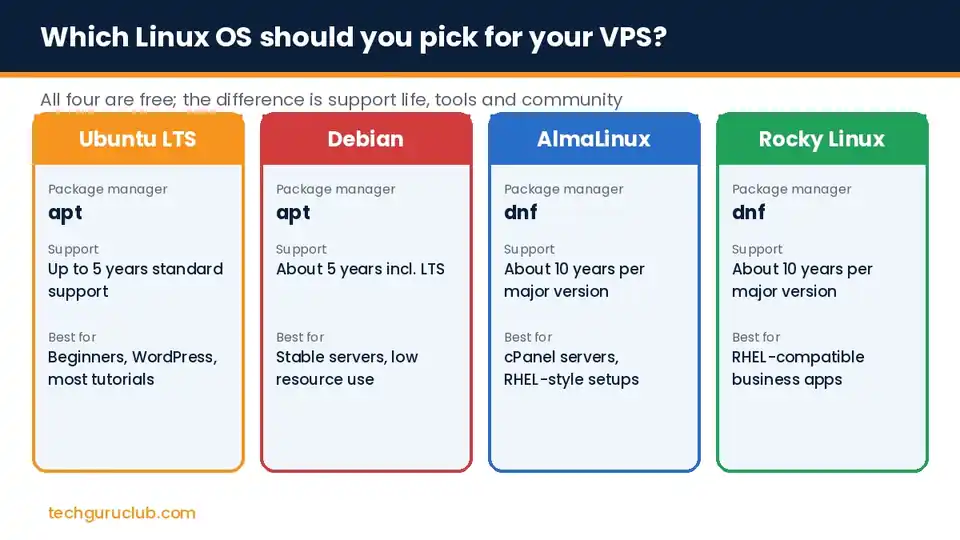
- Ubuntu LTS: the easiest start. Long Term Support releases get five years of standard updates, and almost every tutorial is written for Ubuntu. Choose this if you are unsure.
- Debian: very stable and light. Ubuntu is based on it, so commands are nearly the same. Good for servers you want to leave running quietly for years.
- AlmaLinux: a free rebuild of Red Hat Enterprise Linux with around ten years of support per major version. It is a common choice for cPanel servers.
- Rocky Linux: another Red Hat compatible option with a similar support life. Pick it if your software vendor certifies Red Hat style systems.
Avoid CentOS 7 and other versions that have reached end of life. They no longer receive security updates.
First 10 things to do on a new Linux VPS
A fresh server is reachable from the whole internet the moment it boots. Spend half an hour on these steps before you install your website or app. Commands below are for Ubuntu and Debian; AlmaLinux and Rocky use dnf instead of apt and firewalld instead of UFW.
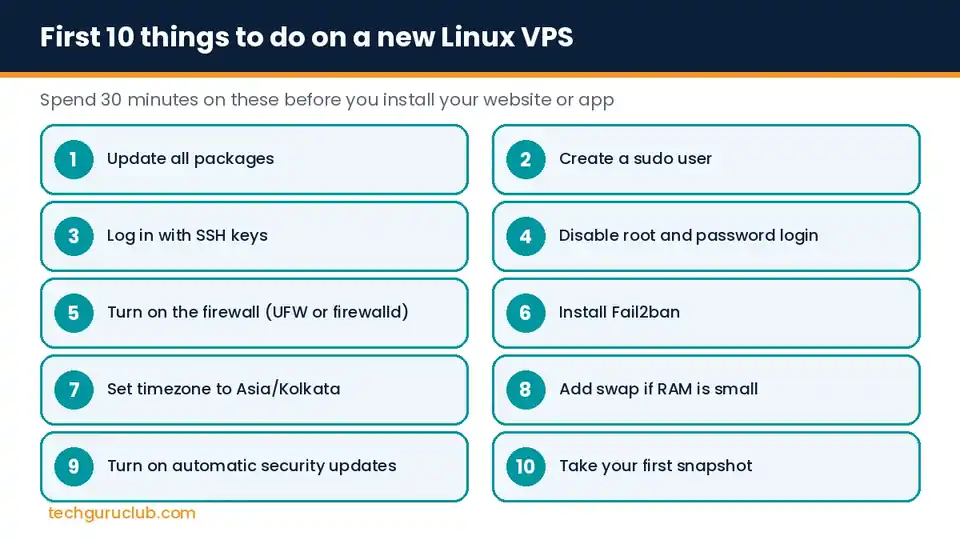
1. Update all packages
sudo apt update && sudo apt upgrade -y
2. Create a normal user with sudo rights
adduser rahul then usermod -aG sudo rahul. From now on, log in as this user, not as root.
3. Log in with SSH keys instead of a password
On your own computer run ssh-keygen -t ed25519, then copy the key to the server with ssh-copy-id rahul@your-server-ip. Test that you can log in before moving on.
4. Disable root login and password login
Edit /etc/ssh/sshd_config and set PermitRootLogin no and PasswordAuthentication no, then run sudo systemctl restart ssh. Keep your current session open until you confirm a new login works.
5. Turn on the firewall
sudo ufw allow OpenSSH, then allow only what you need, for example sudo ufw allow 80,443/tcp for a website, and finally sudo ufw enable.
6. Install Fail2ban
sudo apt install fail2ban -y. It blocks IP addresses that keep guessing passwords.
7. Set the timezone
sudo timedatectl set-timezone Asia/Kolkata, so logs and scheduled jobs use Indian time.
8. Add swap if RAM is small
On plans with 2 GB RAM or less, a small swap file stops the server from crashing during traffic spikes: sudo fallocate -l 2G /swapfile, sudo chmod 600 /swapfile, sudo mkswap /swapfile, sudo swapon /swapfile, and add it to /etc/fstab so it survives a reboot.
9. Turn on automatic security updates
sudo apt install unattended-upgrades -y then sudo dpkg-reconfigure unattended-upgrades.
10. Take your first snapshot
From your VPS control panel, save a snapshot of this clean, secured server. If anything goes wrong later, you can return to this point in minutes.
What to install next
| If you want to run | Install |
|---|---|
| WordPress or PHP site | Nginx or Apache, PHP-FPM, MariaDB, Let’s Encrypt SSL |
| Node.js or Python app | The runtime, a process manager (PM2 or systemd), Nginx as reverse proxy |
| Several client sites | A control panel such as cPanel, Plesk or the free Webmin |
| Containers | Docker and Docker Compose |
Where to find more Linux VPS guides
Most VPS providers publish step-by-step tutorials for their images. Contabo’s blog, for example, has guides on common server set-ups, and the official documentation for Ubuntu, Debian and AlmaLinux is the best place to check commands for your exact version.
Frequently asked questions
Is Linux VPS hosting good for beginners?
Yes, if you are willing to follow a guide like this one, or if you add a control panel. If you never want to touch the command line, choose managed hosting instead.
Can I run Windows software on a Linux VPS?
Not properly. Apps such as Tally need Windows. See our guide to Windows VPS in India.
Can I change the OS later?
Yes, most providers let you reinstall a different OS from the control panel, but reinstalling wipes the server. Take a backup first.
How much RAM does a Linux VPS need?
A small website runs on 2 GB. A WordPress business site with WooCommerce is more comfortable on 4 to 8 GB.
Get Linux VPS hosting ready to use
Tech Guru Club VPS hosting comes with Ubuntu, Debian, AlmaLinux and Rocky Linux images, full root access, NVMe storage and snapshots. Prefer not to manage the server yourself? Our Premium Cloud Linux Hosting gives you a ready control panel instead. Talk to our team to pick the right one.
Related reading: Best VPS hosting in India, cloud hosting vs VPS and what is VPS hosting.


