
Windows VPS in India: Run Tally, Busy and Remote Desktop from Anywhere
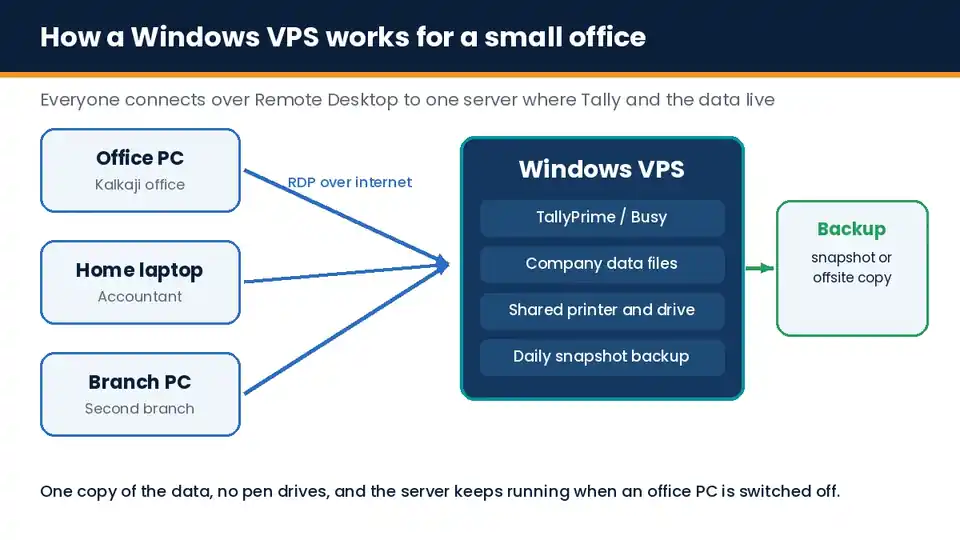
A Windows VPS is a virtual server running Windows Server that you and your team log in to over Remote Desktop. For businesses buying a Windows VPS in India, the most common reason is simple: put Tally, Busy or another Windows-only app on one server, and let the accountant, the owner and the branch office use it from anywhere, on the same data, without carrying pen drives.
This guide covers how a Windows VPS works, what size you need, the licences people forget about, and how to keep it secure.
What is a Windows VPS?
A Windows VPS is a virtual private server with Windows Server installed instead of Linux. It has its own fixed share of CPU, RAM and storage, its own public IP address, and full administrator access. You connect to it with the Remote Desktop app that is already on every Windows PC, and on Mac, Android and iPhone through the free Microsoft Remote Desktop app.
Once you log in, it looks and works like a normal Windows computer. You can install accounting software, a browser, Office, PDF tools or any business app, and it keeps running 24 hours a day in a data centre.
Why businesses use a Windows VPS in India
- Tally or Busy from anywhere: the owner can check outstanding and stock from home, and the CA can work on the books without visiting the office.
- One copy of the data: no more emailing backup files or copying company data between laptops.
- Branch offices: a second shop or warehouse works on the same company file in real time.
- Less dependence on one office PC: if the office computer crashes or the power goes, the server keeps running.
- Older Windows apps: some billing, payroll or GST utilities only run on Windows and have no cloud version.
Windows VPS vs Tally on Cloud vs a local server
| Option | Good for | Watch out for |
|---|---|---|
| Windows VPS | Full control, any Windows app, several users | You or your IT partner manage updates and security |
| Tally on Cloud service | Tally only, managed by the provider | Usually priced per user and limited to Tally |
| Local server in the office | Fast inside the office | Needs power backup, static IP and someone on site when it fails |
How much RAM and CPU do you need?
There is no single answer, because it depends on the size of your company file and how many people work at the same time. As a starting point:
- 1 to 3 users on Tally or Busy: a plan with 4 vCPU and 8 GB RAM is a sensible start.
- 4 to 10 users, or Tally plus Office and a browser: look at 6 to 8 vCPU and 12 to 24 GB RAM.
- Large company files or many branches: prefer NVMe storage, because Tally reads and writes the data folder constantly.
Windows Server itself uses more memory than Linux, so do not size a Windows VPS the same way you would a Linux web server. Start smaller, watch Task Manager for a week, and upgrade if RAM stays above 80 percent.
Licences people forget about
This is where most budgets go wrong. Check all three before you buy:
- Windows Server licence: some providers include it in the plan, others charge it as a monthly add-on. Global providers such as Contabo, for example, offer Windows Server as a paid add-on on top of the VPS price.
- Remote Desktop user licences: Windows Server allows two administrator sessions at the same time without extra licences. If more people need to log in together, you need Remote Desktop Services CALs, or a remote access tool such as TSplus.
- Your accounting software licence: TallyPrime Silver is for a single user. If several people will use Tally at once on the server, you need a multi-user licence (Gold). Check the same rule for Busy and any other software.
How to secure a Windows VPS
A Windows server with Remote Desktop open to the whole internet gets password-guessing attempts within hours. Do these before you share it with your team:
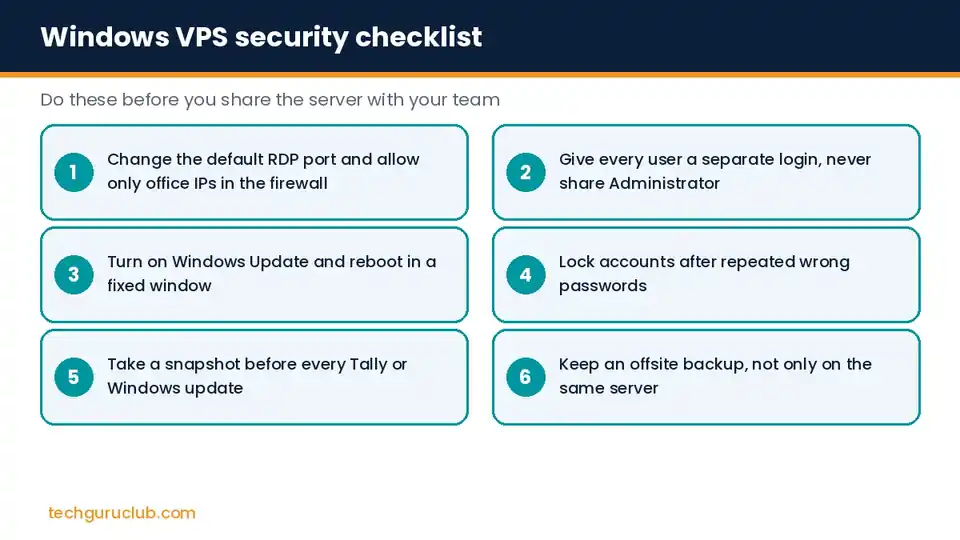
- Restrict RDP in the firewall: allow only your office and home IP addresses, or put Remote Desktop behind a VPN.
- Change the default port 3389: it does not stop a targeted attack, but it cuts down automated scans.
- One login per person: never share the Administrator account. Separate logins also tell you who changed what.
- Account lockout policy: lock an account after a few wrong passwords.
- Updates on a schedule: install Windows updates and restart in a fixed weekly window, not in the middle of billing hours.
- Backups in two places: take a snapshot before every Tally or Windows update, and keep a separate offsite copy. A snapshot on the same server does not help if the account itself is compromised.
How to move Tally to a Windows VPS
- Take a full backup of the Tally data folder on the office PC.
- Install TallyPrime on the VPS and activate your licence.
- Copy the data folder to the VPS and point Tally to it.
- Open each company, check the last voucher date and closing balances match the office PC.
- Create Windows logins for each user and test access from outside the office.
- Stop using the old copy on the office PC, so nobody enters vouchers in two places.
Frequently asked questions
Is a Windows VPS faster than Tally on a local PC?
Inside one office, a good local PC can feel just as fast. A Windows VPS wins when people work from more than one place, because everyone gets the same speed and the same data.
Can I print from Tally on a Windows VPS?
Yes. Remote Desktop can pass your local printer through to the server, so invoices print on the printer next to you.
Do I need a static IP at the office?
It helps, because you can then allow only that IP in the VPS firewall. Without one, use a VPN to reach the server.
Which Windows Server version should I choose?
Pick the newest version your accounting software officially supports. Older versions stop receiving security updates.
Get a Windows VPS set up for your team
Tech Guru Club offers VPS hosting with Windows Server, NVMe storage, snapshots and India-based support, and we can help move your Tally data and set up secure remote access. Talk to our team with the number of users and the software you run, and we will suggest the right plan.
Related reading: Best VPS hosting in India, Linux VPS hosting setup guide and cloud hosting vs VPS.


